Blog
The “Don’t Panic” Guide: 5 Quick Fixes for Common Printer Problems
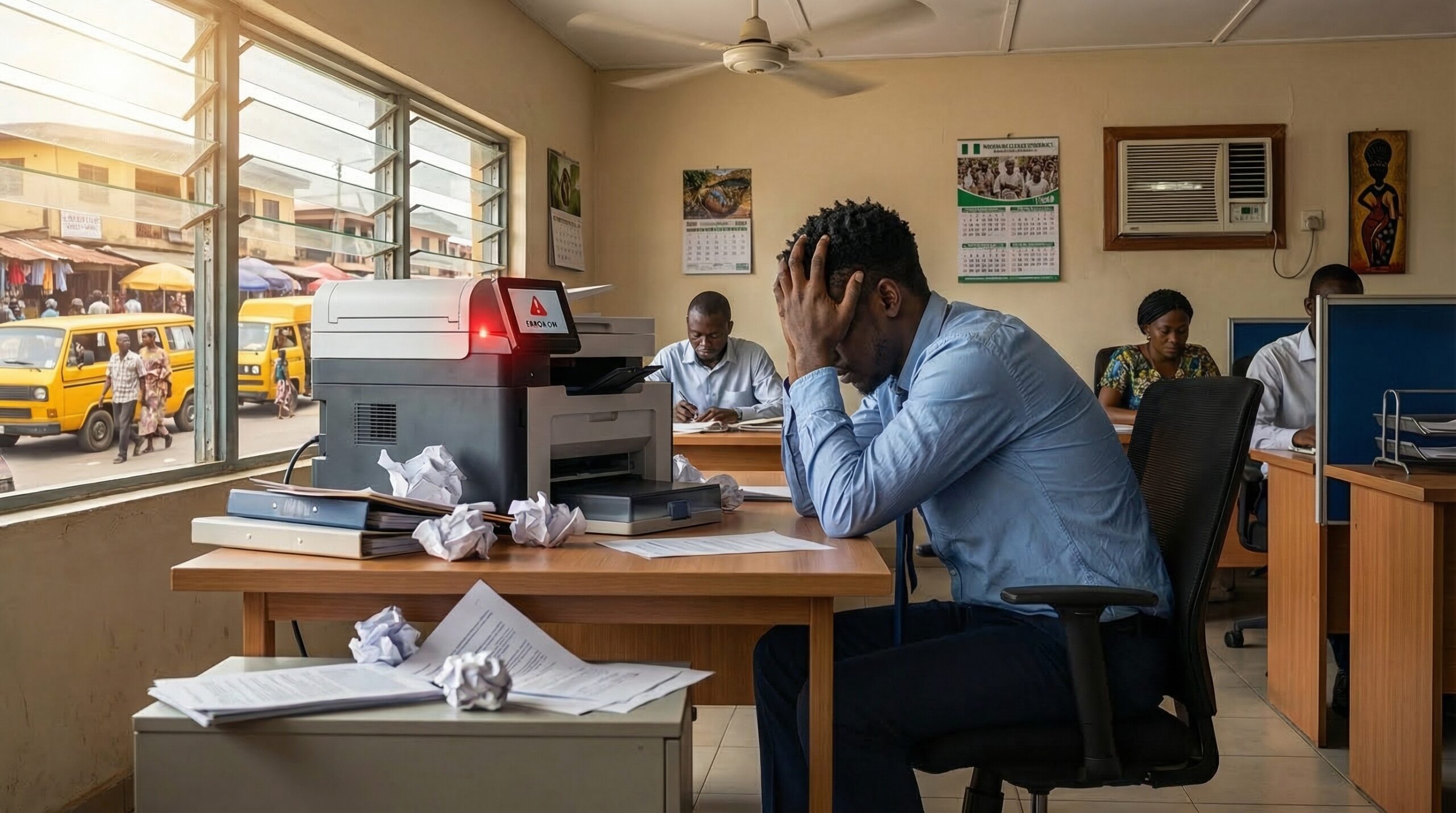
We’ve all been there. You have a pile of invoices to print or a critical contract that needs a physical signature, and suddenly, your printer decide to "take a nap." Before you pick up the phone to call a technician—or worse, consider tossing the machine out the window—take a deep breath!
At GoodMax
We want your business to run without interruption. As the home of OMA Printers and office solutions, we know that many common printer "emergencies" are actually simple fixes you can handle in under five minutes.
Try these DIY troubleshooting steps first to get back to work fast.
1. The Classic Paper Jam (Do it the Right Way)
This is the #1 cause of printer downtime. When you see that dreaded "Paper Jam" alert, the secret is in how you pull.
The Fix: Always pull the paper in the direction of the paper path. Pulling it backward or jerking it out forcefully can tear the sheet, leaving tiny scraps stuck in the rollers that are impossible to reach.
Pro Tip: Always check the rear access door or the paper tray slot. Most OMA printers have a dedicated "clearance" hatch specifically for this!
2. "Printer Offline" or Connection Issues
Sometimes the hardware is fine, but the computer and printer aren't "talking" to each other.
The Fix: * For USB: Unplug the cable from both ends and plug it back in.
For Wi-Fi: Restart your router and your printer.
Check the Queue: Go to your computer's "Devices and Printers" settings. Make sure "Use Printer Offline" isn't accidentally checked.
3. Faded or Streaky Prints
If your documents look like they’re running out of ink even though the cartridge is new, the print heads might just be clogged with a little dry ink or dust.
The Fix: Almost all modern printers (especially OMA models) have a built-in "Clean Print Heads" utility in the maintenance menu. Run this cycle once or twice. It uses a tiny bit of ink to flush the nozzles and usually restores perfect quality.
4. Keeping Your Software Sharp (The Update Fix)
Just like your smartphone, your printer needs "firmware" updates to work with the latest versions of Windows or macOS. If your printer starts acting glitchy after a computer update, the software is likely the culprit.
The Fix: Visit the Software Updates section on our website or the official manufacturer's page. Downloading the latest "Driver" can solve 90% of mysterious software errors.
5. Ghosting or "Double Images"
If you see a faint "ghost" of the previous line repeating down the page, it’s usually a sign of a dirty drum or a fuser issue.
The Fix: Before calling a pro, try printing 10 blank sheets of paper. Often, the heat from the printer will "self-clean" the rollers as the blank pages pass through, picking up excess toner or debris.
When Should You Actually Call Us?
DIY is great for minor hiccups, but if you hear loud grinding noises, see smoke/smell burning, or if the error code persists after a factory reset, it’s time to bring it to the experts.
At GoodMax Global Enterprise, we don’t just sell you the best OMA equipment; we make sure it stays running. If these quick fixes don't do the trick, visit us at 7 Sawyer Street, Tinubu Square, and our team will get you back in business!
Have a specific error code on your screen right now? Drop us a message on WhatsApp.